












































































































































































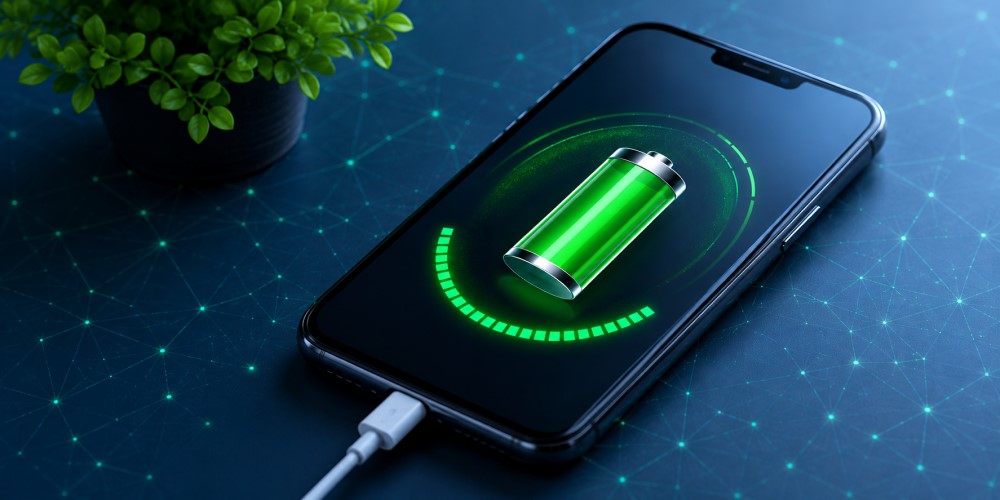
Your Android phone’s battery is one of its most important components. It powers everything from communication and entertainment to navigation, banking, and productivity. However, like all rechargeable lithium-ion batteries, Android batteries degrade over time. As they age, they lose their ability to hold a full charge, resulting in shorter battery life, unexpected shutdowns, slower performance, and more frequent charging.
Knowing how to check your Android battery health helps you determine whether your battery is still performing as intended or if it’s time for a replacement. It also allows you to identify apps or habits that may be accelerating battery degradation, helping you maximize your device’s lifespan while maintaining optimal performance.
Unlike some smartphones that provide a dedicated battery health percentage, most Android devices do not display this information in an easily accessible location. Fortunately, there are several reliable methods – from built-in diagnostic menus to manufacturer-specific tools and third-party apps – that can help you assess your battery’s condition.
Why battery health matters
Battery health refers to your battery’s ability to store and deliver electrical energy compared to when it was brand new. Every charging cycle causes microscopic chemical changes inside lithium-ion cells. Eventually, these changes reduce the battery’s maximum capacity and efficiency. Understanding your battery health allows you to:
- Determine whether poor battery life is caused by battery degradation or software.
- Decide whether replacing the battery is worthwhile.
- Improve charging habits to slow future degradation.
- Prevent unexpected shutdowns.
- Maintain consistent phone performance.
- Increase resale value by documenting battery condition.
A healthy battery ensures your Android device remains dependable throughout the day.
Understanding Android battery health
Before checking battery health, it’s helpful to understand what the measurements actually mean. Battery health is generally determined by several factors, including:
1. Maximum battery capacity
This measures how much charge your battery can currently hold compared to its original design capacity. For example:
- Original capacity: 5,000 mAh
- Current maximum capacity: 4,350 mAh
Battery health:
This means your battery retains 87% of its original capacity.
2. Charge cycles
A charge cycle equals using 100% of your battery’s capacity, although not necessarily in one charge. For example:
- Charge from 40% to 90% (50%)
- Later charge from 30% to 80% (50%)
Together these equal one full cycle. Most modern lithium-ion batteries are designed for approximately:
- 500-800 cycles before noticeable degradation.
- Premium batteries may exceed 1,000 cycles.
3. Battery voltage
Healthy batteries maintain stable voltage under load. Significant voltage drops often indicate aging.
4. Battery temperature
High temperatures accelerate battery wear. Normal operating temperature:
- 20°C-35°C (68°F-95°F)
Repeated exposure above 40°C (104°F) significantly reduces lifespan.
Signs your Android battery health is declining
Before running diagnostics, your phone may already show warning signs of battery deterioration.
a. Reduced battery life
The most obvious symptom is the battery draining much faster than when the device was new.
b. Unexpected shutdowns
Older batteries may suddenly power off even while showing 15–30% remaining.
c. Slow charging
A degraded battery sometimes charges inconsistently or more slowly.
d. Phone overheating
Excessive heat during everyday tasks can indicate battery wear.
e. Battery swelling
A swollen battery is dangerous and should be replaced immediately. Signs include:
- Screen lifting.
- Back cover bulging.
- Phone wobbling on flat surfaces.
Never continue using a swollen battery.
Method 1: Check battery health using Android Settings
Many recent Android versions provide battery diagnostics.
a. On Google Pixel
Open:
Settings → Battery → Battery Health
Depending on Android version, you may see:
- Battery condition.
- Estimated remaining lifespan.
- Charging optimization.
- Battery usage patterns.
Some versions also recommend whether replacement is necessary.
b. On Samsung Galaxy
Samsung devices include battery diagnostics through the Samsung Members app. Steps:
- Open ‘Samsung Members’.
- Tap ‘Support’.
- Select ‘Phone diagnostics’.
- Tap ‘Battery’.
Results usually indicate:
- Good
- Normal
- Weak
- Replace recommended
The app also displays:
- Battery status
- Capacity
- Charging functionality
Method 2: Use the Android hidden diagnostic menu
Many Android phones include a built-in testing menu. Open the Phone app. Dial:
*#*#4636#*#*If supported, a testing menu appears. Navigate to:
- Battery Information
Depending on manufacturer, it may display:
- Battery level
- Health
- Temperature
- Voltage
- Charging source
Not every manufacturer supports this menu.
Method 3: Check battery health using manufacturer diagnostic tools
Many smartphone manufacturers provide their own health-checking utilities.
a. Samsung
Samsung Members provides one of the easiest battery diagnostics. It evaluates:
- Battery status.
- Remaining capacity.
- Charging performance.
b. OnePlus
Some OnePlus devices include:
Settings → Battery → Battery Health
Others require the diagnostic app.
c. Xiaomi
Recent MIUI and HyperOS versions include battery statistics under:
Settings → Battery
Some engineering menus provide additional health information.
d. Motorola
Motorola devices include hardware diagnostics through:
Device Help → Device Diagnosis
e. ASUS
ROG Phone models include battery protection and health monitoring features.
f. Sony
Sony Xperia devices offer battery care settings that estimate battery longevity.
Method 4: Use AccuBattery
One of the most popular battery-monitoring apps is AccuBattery. Unlike simple battery monitors, it estimates actual battery capacity through repeated charging sessions. It provides:
- Estimated battery health.
- Charge cycles.
- Charging speed.
- Battery wear.
- Screen-on time.
- Temperature history.
- Charging efficiency.
How it works
After installation:
- Use your phone normally.
- Charge multiple times.
- Allow the app to collect data.
After several charging sessions, it estimates:
- Design capacity.
- Estimated actual capacity.
- Battery health percentage.
The longer you use it, the more accurate the estimate becomes.
Method 5: Use CPU-Z
CPU-Z provides detailed hardware information. The battery section includes:
- Battery level
- Voltage
- Temperature
- Charging status
- Health (where supported)
Although it may not calculate exact capacity, it offers useful diagnostic information.
Method 6: Use ADB battery diagnostics
Advanced users can obtain battery information using Android Debug Bridge (ADB). After enabling Developer Options and USB debugging, run:
adb shell dumpsys batteryYou may see:
- Current battery level
- Voltage
- Temperature
- Charging status
- Plug type
Some manufacturers expose additional battery statistics.
Method 7: Check battery cycle count
Newer Android versions increasingly expose battery cycle counts. On supported phones:
Settings → About phone → Battery information
Or:
Settings → Battery → Battery Health
Some manufacturers display:
- Total cycles.
- Remaining lifespan.
- Service recommendation.
Cycle count is often a better indicator of battery age than calendar age.
How to interpret battery health results
Checking battery health is only useful if you understand what the numbers mean.
a. 95-100%
Excellent condition. Battery performs almost like new.
b. 90-94%
Very good. Normal aging.
c. 80-89%
Moderate wear. Daily performance remains acceptable for most users.
d. Below 80%
Significant degradation. You may experience:
- Reduced battery life.
- Unexpected shutdowns.
- Increased charging frequency.
Battery replacement becomes worth considering.
e. Below 70%
Poor condition. Replacement is strongly recommended.
Factors that reduce battery health
Several everyday habits accelerate battery degradation.
a. Frequent fast charging
Fast charging generates additional heat. Occasional use is fine, but constant fast charging increases wear.
b. High temperatures
Heat is the biggest enemy of lithium-ion batteries. Avoid:
- Leaving phones inside hot cars.
- Gaming while charging.
- Direct sunlight.
- Heavy workloads during charging.
c. Keeping battery at 100%
Constantly maintaining a full charge increases chemical stress. Many manufacturers now limit overnight charging to reduce wear.
d. Deep discharges
Regularly draining batteries to 0% shortens lifespan. Keeping charge between 20% and 80% generally reduces long-term wear.
e. Cheap chargers
Poor-quality chargers may produce unstable voltage. Always use certified charging accessories.
Tips to maintain Android battery health
Proper charging habits can significantly extend battery lifespan.
a. Avoid extreme temperatures
Charge indoors whenever possible. Remove thick protective cases if the phone becomes excessively warm.
b. Enable adaptive charging
Many Android phones include features such as:
- Adaptive Charging
- Battery Protection
- Optimized Charging
These slow charging overnight and finish just before you normally wake up.
c. Keep software updated
Battery management improvements frequently arrive through software updates. Install updates regularly.
d. Reduce unnecessary heat
Limit prolonged:
- 4K video recording.
- Heavy gaming.
- Benchmarking.
- Wireless charging during hot weather.
e. Use original accessories
Official chargers provide safer charging profiles. Certified USB Power Delivery chargers are also excellent choices.
f. Avoid overnight charging on older devices
While newer phones intelligently manage charging, older devices may benefit from unplugging once fully charged.
When should you replace your Android battery?
Battery replacement becomes appropriate when:
- Health falls below 80%.
- Battery drains rapidly.
- Phone shuts down unexpectedly.
- Charging becomes unreliable.
- Battery swells.
- Device becomes excessively hot during normal use.
Replacing the battery is often much cheaper than buying a new smartphone.
Common myths about Android battery health
Battery myths continue to circulate despite advances in battery technology.
Myth 1: You must fully discharge before charging
False. Lithium-ion batteries actually prefer partial charging.
Myth 2: Charging overnight always damages batteries
Mostly false. Modern Android phones intelligently manage charging to reduce stress.
Myth 3: Closing apps saves battery health
Generally false. Android already manages background apps efficiently. Force-closing apps repeatedly may even consume more power.
Myth 4: Fast charging destroys batteries
Not entirely. Occasional fast charging causes minimal damage. The primary concern is heat, not charging speed itself.
Myth 5: Battery calibration improves battery health
Calibration only improves battery percentage accuracy. It does not restore lost battery capacity.
Troubleshooting inaccurate battery readings
Sometimes your battery appears unhealthy when the problem lies elsewhere. Check the following:
- Battery-hungry apps.
- Software bugs.
- Background synchronization.
- Malware.
- Poor cellular signal.
- High display brightness.
Review battery usage in:
Settings → Battery → Battery Usage
This identifies apps consuming excessive power.
Conclusion
Checking your Android battery health is an essential part of maintaining your smartphone’s reliability and longevity. Although Android does not offer a universal battery health indicator across all devices, there are numerous dependable ways to assess your battery’s condition. Built-in diagnostics, manufacturer tools, hidden testing menus, and trusted third-party apps all provide valuable insights into your battery’s remaining capacity, charging behavior, temperature, and overall condition.
Understanding battery health enables you to distinguish between normal battery aging and software-related issues, make informed decisions about battery replacement, and adopt charging habits that slow future degradation. Small adjustments – such as avoiding excessive heat, limiting prolonged exposure to a full charge, using quality chargers, and enabling adaptive charging features – can significantly extend the lifespan of your battery.
Ultimately, every lithium-ion battery will wear out over time, but careful monitoring and proper maintenance can help you get the maximum performance and longevity from your Android device. By regularly checking battery health and responding to early warning signs, you can ensure your smartphone continues to deliver reliable performance long after its initial purchase.